C++ GUI

Nous avons besoin de vos commentaires. Cliquez ici!
- gtkmm est l'interface C++ officielle de la bibliothèque graphique populaire GTK.
- Nous allons travailler avec gtkmm3.0. Suivez les instructions sur cette page pour cette installation.
Détails de l'exercice:
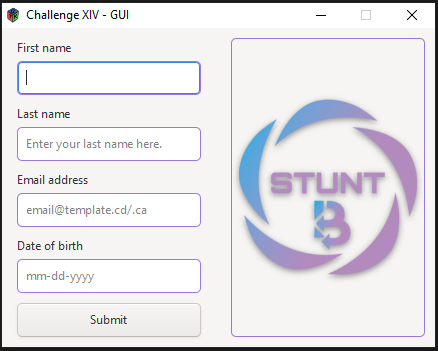
- Créez un KMM dans lequel le prénom, le nom, l'adresse e-mail et la date de naissance de l'utilisateur peuvent être collectés.
- Cet exercice implémente simplement une fenêtre de base avec quatre entrées de texte dont les données sont collectées
Suivez ces étapes pour créer votre interface graphique
- La fenêtre principale est déclarée comme suit:
class GUI : public Gtk::Window{
    public:
         GUI(); virtual ~GUI();
    protected:
    void on_button_clicked(const Glib::ustring& data);
    Gtk::Button submit_button; Gtk::Grid main_grid; Gtk::Image img_display;
    // labels
    Gtk::Label firstname_label; Gtk::Label lastname_label;Gtk::Label email_label;
    Gtk::Label date_of_birth_label;
    // entries
    Gtk::Entry firstname_entry; Gtk::Entry lastname_entry;Gtk::Entry email_entry;
    Gtk::Entry date_of_birth_entry;
    // box
    Gtk::Box input_box;
};- The GUI class extends the Gtk::Window class, which represents a window.
- This class's constructor manages the initialization of all declared widgets.
- Gtk::Grid defines child widgets for rows and columns. In our case, we use it to divide the GUI into one row and two towers.
- The first column contains the required text entries and the second column contains the group logo we've added to the window using Gtk::Image.
- The void on_button_clicked(const Glib::ustring& data) function is the event handler for the submit button, i.e. the function is called when the button is clicked.
- The GUI class constructor is implemented as follows:
GUI::GUI():
    fm("data", "day30_data.txt"), // file manager
    submit_button("Submit"),      // button text
    img_display("outputs/stunt_business.png"), // path to the logo
    firstname_label("First name"),  // label content is “First name”
    lastname_label("Last name"),    // label content is “Last name”
    email_label("Email address"),   // label content is “Email address”
    date_of_birth_label("Date of birth"), // label content is “Date of birth”
    input_box(Gtk::ORIENTATION_VERTICAL)  // box component added vertically
{ … }- Gtk::Box input_box est un conteneur invisible contenant des étiquettes et des entrées ajoutées à la grille principale.
- Les noms de fichiers initiaux, le titre et la taille du KMM et la première balise de nom sont définis comme suit:
// initialize the file titles
set_title("Challenge XIV - GUI");
// Sets the border width of the window.
set_border_width(10);        // spacing on the window border
set_default_size(400, 250);  // width: 400px - height: 250px
set_resizable(false);        // the window can not be resized
// labels
// apply to the below label configurations to the other labels
firstname_label.set_halign(Gtk::ALIGN_START);
firstname_label.set_justify(Gtk::JUSTIFY_LEFT);
firstname_label.set_margin_top(1);    // spacing on top of the label
firstname_label.set_margin_bottom(5); // spacing at the bottom of the label- Les entrées et les connexions sont établies comme suit:
// entries initialization
 firstname_entry.set_max_length(50);
 firstname_entry.set_placeholder_text("Enter your first name here.");
 lastname_entry.set_max_length(50);
 lastname_entry.set_placeholder_text("Enter your last name here.");
 email_entry.set_max_length(50);
 email_entry.set_placeholder_text("email@template.cd/.ca");
 date_of_birth_entry.set_max_length(10);
date_of_birth_entry.set_placeholder_text("mm-dd-yyyy");- Les entrées ci-dessus peuvent être ajoutées à l'intérieur du conteneur de boîte comme suit:
// input box initialization
input_box.pack_start(firstname_label);
input_box.pack_start(firstname_entry);
// do the same for the other entries and labels- The main grid is added to the main window as follows:
// add the main_grid to the main window
add(main_grid);
// spacing between the column of the main grid
main_grid.set_column_spacing(25);
// all the columns have the same width
main_grid.set_column_homogeneous(true);
// add the components to the main grid
// attach at position (0,0) for 1 row and 1 column
main_grid.attach(input_box,0,0,1,1);
// attach img_display on the right of input_box for 1 row and 1 column
main_grid.attach_next_to(img_display, input_box, Gtk::POS_RIGHT, 1,1);
// vertically aligned to the center
main_grid.set_valign(Gtk::ALIGN_CENTER);
// fill the width allocated for the component
main_grid.set_halign(Gtk::ALIGN_FILL);- Le gestionnaire d’événements du bouton Soumettre est défini comme suit:
// When the button receives the "clicked" signal, it will call the
// on_button_clicked() method defined below with the parameter initialized to
// “submit_button”
submit_button.signal_clicked().connect(sigc::bind<Glib::ustring>(sigc::mem_fun(*this,
&GUI::on_button_clicked), "submit_button"));- Le gestionnaire d’événements du bouton Soumettre est défini comme suit:
// display the widgets
submit_button.show();
// do the same for the other widgets- La fonction on_button_clicked est définie comme suit:
void GUI::on_button_clicked(const Glib::ustring& data){
      // Process the input sent from the GUI here.
}- Finalement, le programme principal pour lancer votre GUI est implémenté comme suit:
int main(int argc, char *argv[]){

    auto app = Gtk::Application::create(argc, argv, "org.gtkmm.example");

    GUI gui_challenge_XIV; // instantiate the GUI

    return app->run(gui_challenge_XIV);
}
Voici les résultats de votre programme
Notre entreprise propose des formations C++ en ligne et en personne. Inscrivez-vous maintenant et rejoingnez notre communauté.
Références:
[1] "gtkmm": https://www.gtkmm.org/en/