C++ GUI

We need your feedback. Click here!
- gtkmm is the official C++ interface to the popular GTK graphics library.
- We'll be working with gtkmm3.0. Follow the instructions on this page for installation.
Exercise details:
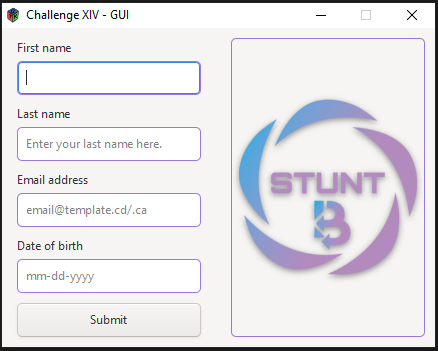
- Create a KMM in which the user's first name, last name, e-mail address and date of birth can be collected.
- This exercise simply implements a basic window with four text inputs whose data are collected
Follow these steps to create your GUI
- The main window is declared as follows:
class GUI : public Gtk::Window{
    public:
         GUI(); virtual ~GUI();
    protected:
    void on_button_clicked(const Glib::ustring& data);
    Gtk::Button submit_button; Gtk::Grid main_grid; Gtk::Image img_display;
    // labels
    Gtk::Label firstname_label; Gtk::Label lastname_label;Gtk::Label email_label;
    Gtk::Label date_of_birth_label;
    // entries
    Gtk::Entry firstname_entry; Gtk::Entry lastname_entry;Gtk::Entry email_entry;
    Gtk::Entry date_of_birth_entry;
    // box
    Gtk::Box input_box;
};- The GUI class extends the Gtk::Window class, which represents a window.
- This class's constructor manages the initialization of all declared widgets.
- Gtk::Grid defines child widgets for rows and columns. In our case, we use it to divide the GUI into one row and two towers.
- The first column contains the required text entries and the second column contains the group logo we've added to the window using Gtk::Image.
- The void on_button_clicked(const Glib::ustring& data) function is the event handler for the submit button, i.e. the function is called when the button is clicked.
- The GUI class constructor is implemented as follows:
GUI::GUI():
    fm("data", "day30_data.txt"), // file manager
    submit_button("Submit"),      // button text
    img_display("outputs/stunt_business.png"), // path to the logo
    firstname_label("First name"),  // label content is “First name”
    lastname_label("Last name"),    // label content is “Last name”
    email_label("Email address"),   // label content is “Email address”
    date_of_birth_label("Date of birth"), // label content is “Date of birth”
    input_box(Gtk::ORIENTATION_VERTICAL)  // box component added vertically
{ … }- Gtk::Box input_box is an invisible container containing labels and entries added to the main grid.
- Initial file names, KMM title and size, and the first name tag are set as follows:
// initialize the file titles
set_title("Challenge XIV - GUI");
// Sets the border width of the window.
set_border_width(10);        // spacing on the window border
set_default_size(400, 250);  // width: 400px - height: 250px
set_resizable(false);        // the window can not be resized
// labels
// apply to the below label configurations to the other labels
firstname_label.set_halign(Gtk::ALIGN_START);
firstname_label.set_justify(Gtk::JUSTIFY_LEFT);
firstname_label.set_margin_top(1);    // spacing on top of the label
firstname_label.set_margin_bottom(5); // spacing at the bottom of the label- Inputs and connections are established as follows:
// entries initialization
 firstname_entry.set_max_length(50);
 firstname_entry.set_placeholder_text("Enter your first name here.");
 lastname_entry.set_max_length(50);
 lastname_entry.set_placeholder_text("Enter your last name here.");
 email_entry.set_max_length(50);
 email_entry.set_placeholder_text("email@template.cd/.ca");
 date_of_birth_entry.set_max_length(10);
date_of_birth_entry.set_placeholder_text("mm-dd-yyyy");- The above entries can be added inside the box container as follows:
// input box initialization
input_box.pack_start(firstname_label);
input_box.pack_start(firstname_entry);
// do the same for the other entries and labels- The main grid is added to the main window as follows:
// add the main_grid to the main window
add(main_grid);
// spacing between the column of the main grid
main_grid.set_column_spacing(25);
// all the columns have the same width
main_grid.set_column_homogeneous(true);
// add the components to the main grid
// attach at position (0,0) for 1 row and 1 column
main_grid.attach(input_box,0,0,1,1);
// attach img_display on the right of input_box for 1 row and 1 column
main_grid.attach_next_to(img_display, input_box, Gtk::POS_RIGHT, 1,1);
// vertically aligned to the center
main_grid.set_valign(Gtk::ALIGN_CENTER);
// fill the width allocated for the component
main_grid.set_halign(Gtk::ALIGN_FILL);- The Submit button event handler is defined as follows:
// When the button receives the "clicked" signal, it will call the
// on_button_clicked() method defined below with the parameter initialized to
// “submit_button”
submit_button.signal_clicked().connect(sigc::bind<Glib::ustring>(sigc::mem_fun(*this,
&GUI::on_button_clicked), "submit_button"));- The Submit button event handler is defined as follows:
// display the widgets
submit_button.show();
// do the same for the other widgets- The on_button_clicked function is defined as follows:
void GUI::on_button_clicked(const Glib::ustring& data){
      // Process the input sent from the GUI here.
}- Finally, the main program for launching your GUI is implemented as follows:
int main(int argc, char *argv[]){

    auto app = Gtk::Application::create(argc, argv, "org.gtkmm.example");

    GUI gui_challenge_XIV; // instantiate the GUI

    return app->run(gui_challenge_XIV);
}
Here are the results of your program
Our company offers online and in-person C++ training. Register now and join the community.
References
[1] "gtkmm": https://www.gtkmm.org/en/