Programmation En Orienté Objet (POO)

Nous avons besoin de vos commentaires. Cliquez ici!
Le package tkinter (« interface Tk ») est une interface Python standard pour la boîte à outils Tk GUI.[1]
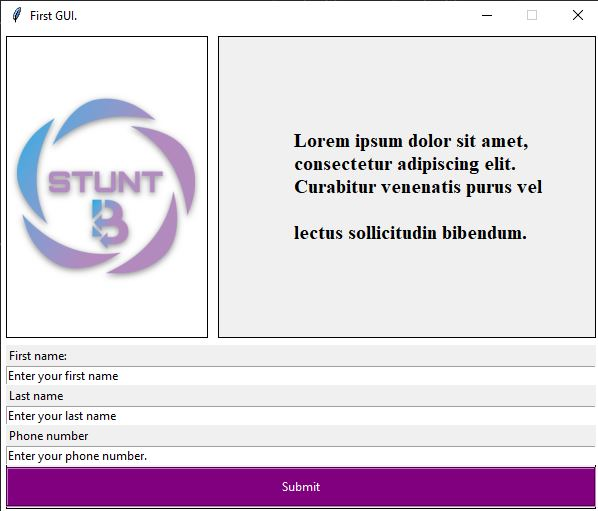
À titre d’exercice, créons notre première interface graphique avec des images, du texte, des entrées et un bouton de soumission. Le titre donné à notre fenêtre est “Première GUI”
En utilisant Tkinter dans votre code, importez le package et initialisez l’objet tkinter en conséquence:
import tkinter as tk
# initialize your tkinter object
window = tk.Tk()- Notre fenêtre est définie comme non redimensionnable avec des dimensions définies sur 600 x 480 comme suit:
# initialize your tkinter object
window = tk.Tk()
window.resizable(False,False)
window.geometry("600x480")
window.title("First GUI.")- Un cadre est un widget qui peut être utilisé pour contenir d’autres widgets et nous avons utilisé deux cadres dans la fenêtre tk ci-dessus : un pour les images et le texte avec des dimensions définies sur 600×300, et un autre pour les champs de saisie avec des dimensions définies sur 600×100.
# create frame
frame = tk.Frame(window, width=600, height=300, background="white")
frame.pack(side=tk.TOP)

# create frame bottom
frame_bottom = tk.Frame(window, width=600, height=100, background="white")
frame_bottom.pack(side= tk.TOP)- Canva [2] est utilisé pour afficher des images et afficher des champs dans notre fenêtre. Nous avons utilisé ce widget comme suit:
# -----------------------
# TOP FRAME ELEMENTS
# -----------------------

# image container
canvas = tk.Canvas(frame, width=200,height=300, bg="white",bd=1, highlightthickness=0,relief="solid")
canvas.pack(side=tk.LEFT,fill='both', expand='yes',padx=5,pady=5)

img = tk.PhotoImage(file="img_data/android-chrome-192x192.png")
canvas.create_image(100, 150, anchor=tk.CENTER, image=img)

#right canvas
canvas_right = tk.Canvas(frame, width=400,height=300, bd=1, highlightthickness=0,relief="solid")
canvas_right.pack(side=tk.RIGHT ,fill=tk.BOTH, expand='yes',padx=5,pady=5)

# text canvas
text = '''
Lorem ipsum dolor sit amet,
consectetur adipiscing elit.
Curabitur venenatis purus vel\n
lectus sollicitudin bibendum.
'''
canvas_right.create_text(200,150,fill="black", font="Times 15 bold",
                        text=text, anchor=tk.CENTER)

# -----------------------
# BOTTOM FRAME ELEMENTS
# -----------------------

# add entries in the bottom frame
canvas_frame_bottom = tk.Canvas(frame_bottom, width=600, height=100, bd=1, highlightthickness=0,relief="solid")
canvas_frame_bottom.pack(fill='both',expand='yes',padx=5,pady=2)

entr_one_text = tk.StringVar()
entr_one_text.set("Enter your first name")

entr_two_text = tk.StringVar()
entr_two_text.set("Enter your last name")

entr_third_text = tk.StringVar()
entr_third_text.set("Enter your phone number.")

# first entry
entry_one_label = tk.Label(canvas_frame_bottom, text="First name:", width=200,anchor=tk.W)
entry_one_label.pack()

entry_one = tk.Entry(canvas_frame_bottom, textvariable=entr_one_text, width =400)
entry_one.pack()

# second entry
entry_two_label = tk.Label(canvas_frame_bottom, text="Last name", width=200,anchor=tk.W)
entry_two_label.pack()

entry_two = tk.Entry(canvas_frame_bottom, textvariable=entr_two_text, width = 400)
entry_two.pack()

# third entry
entry_three_label = tk.Label(canvas_frame_bottom, text="Phone number", width=200,anchor=tk.W)
entry_three_label.pack()

entry_three = tk.Entry(canvas_frame_bottom, textvariable=entr_third_text, width =400)
entry_three.pack()

submit = tk.Button(canvas_frame_bottom, text="Submit",fg="white",bg="purple",width=200,height=15,relief=tk.GROOVE)
submit.pack(pady=2)- Utilisez la fonction mainloop() dans la fenêtre tkinter initialisée pour tout conserver sur votre écran jusqu’à la fin du programme.[3]
# window
window.mainloop()- Résultats du programme:
Notre société propose des formations Python en ligne et en personne. Inscrivez-vous maintenant et rejoignez la communauté.
Références:
[1] "tkinter - Python interface to Tcl/Tk": https://docs.python.org/3/library/tkinter.html [2] "Frame": https://tkdocs.com/pyref/frame.html [3] "Canvas": https://tkdocs.com/tutorial/canvas.html